Latterday Lens logo

Study, compare, bookmark, and take notes locally.

Latterday Lens is a Windows desktop app for private scripture study with a dual-pane reader, search, notes, bookmarks, journal tools, and bundled study media.

Free Windows Portable ZIP Offline-first

What It Does

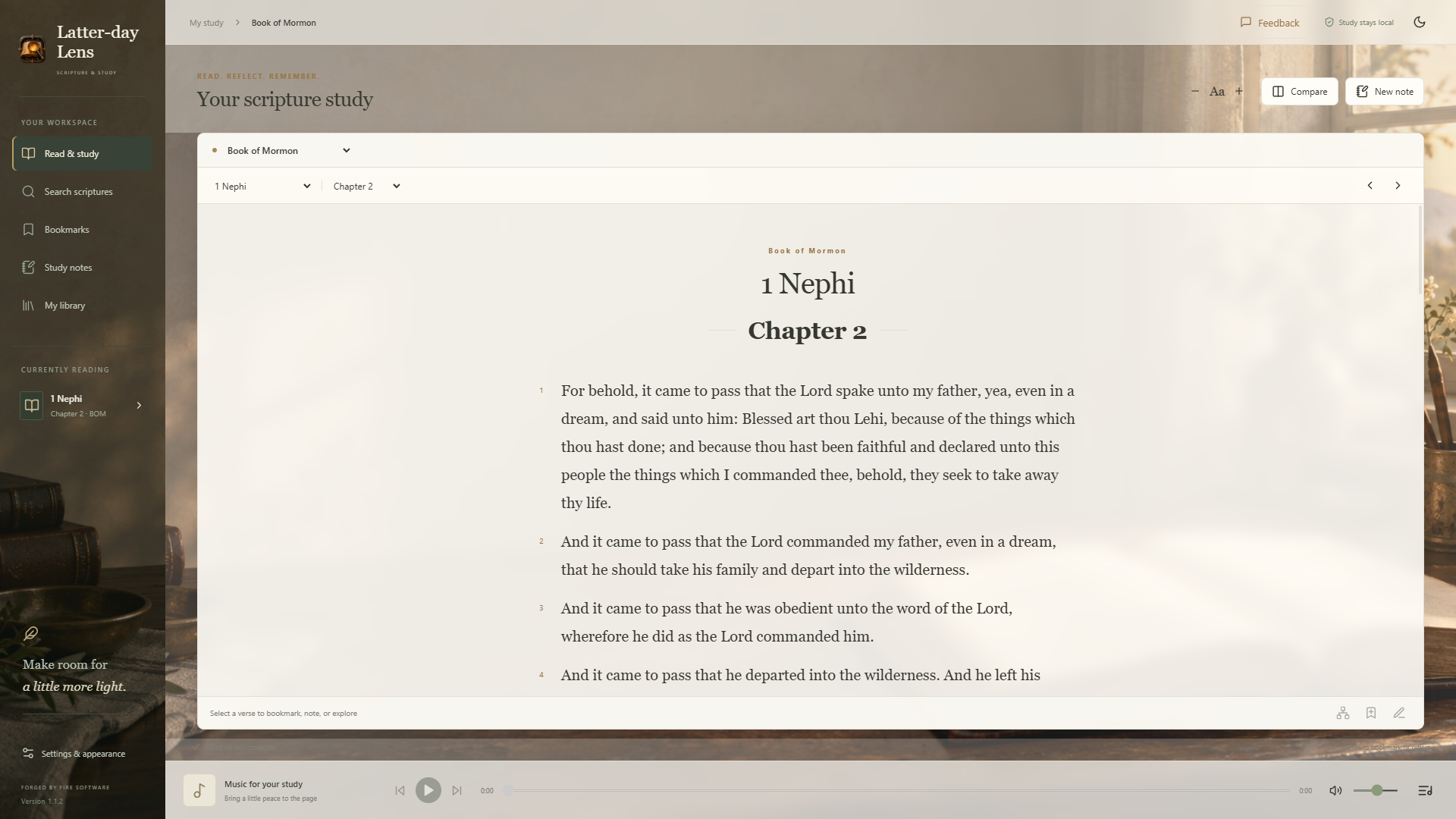
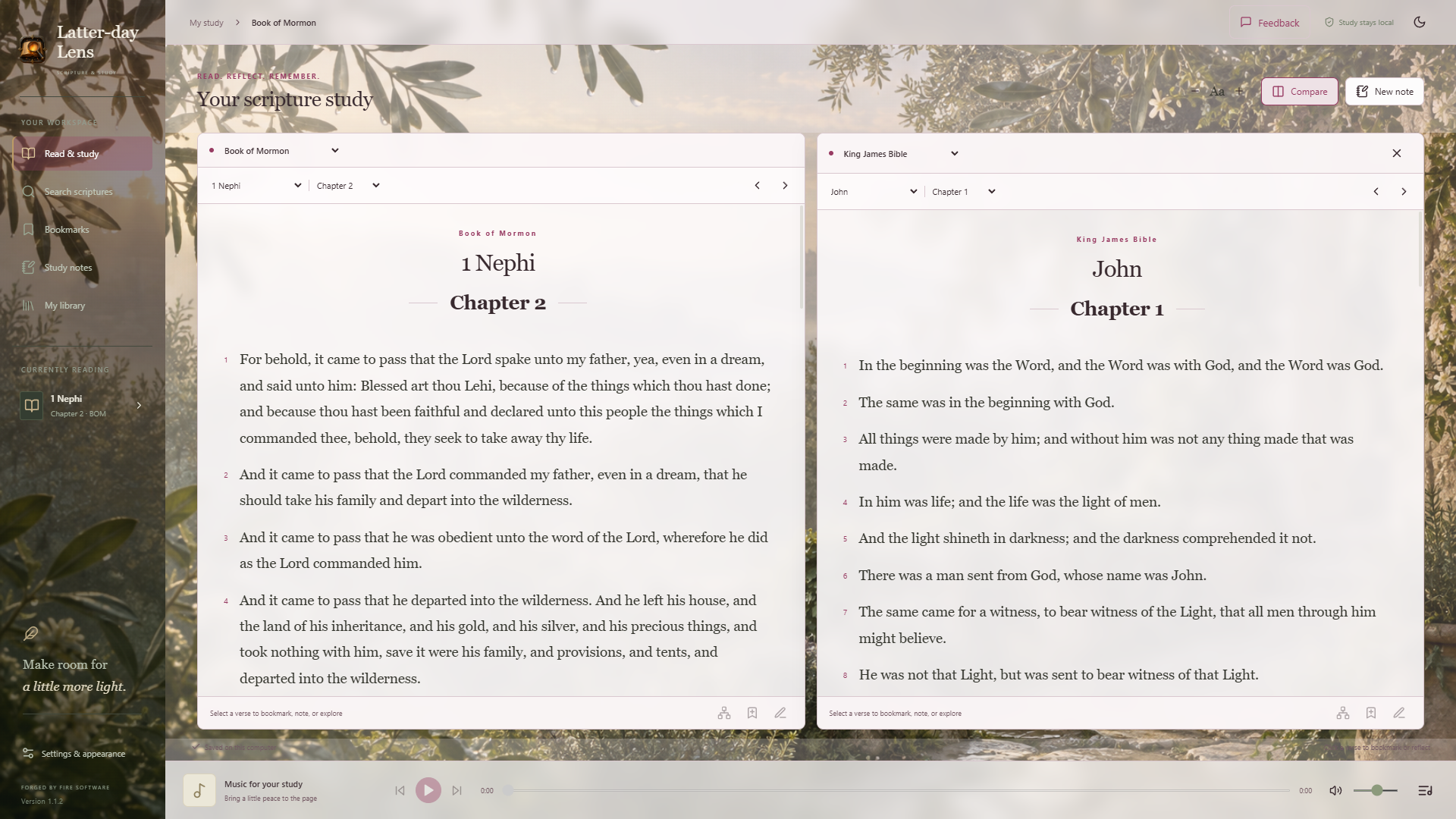
Scripture Reader

Read and compare scripture sources side by side with synchronized study controls and quick navigation.

Search and Index

Search across included scripture sources and jump into useful passages without needing an online account.

Bookmarks and Notes

Save study spots, highlight selections, write notes, and keep a local journal on your own computer.

Bundled Library

This full release includes the bundled scripture/audio library so the app is useful immediately after extraction.

Screenshots

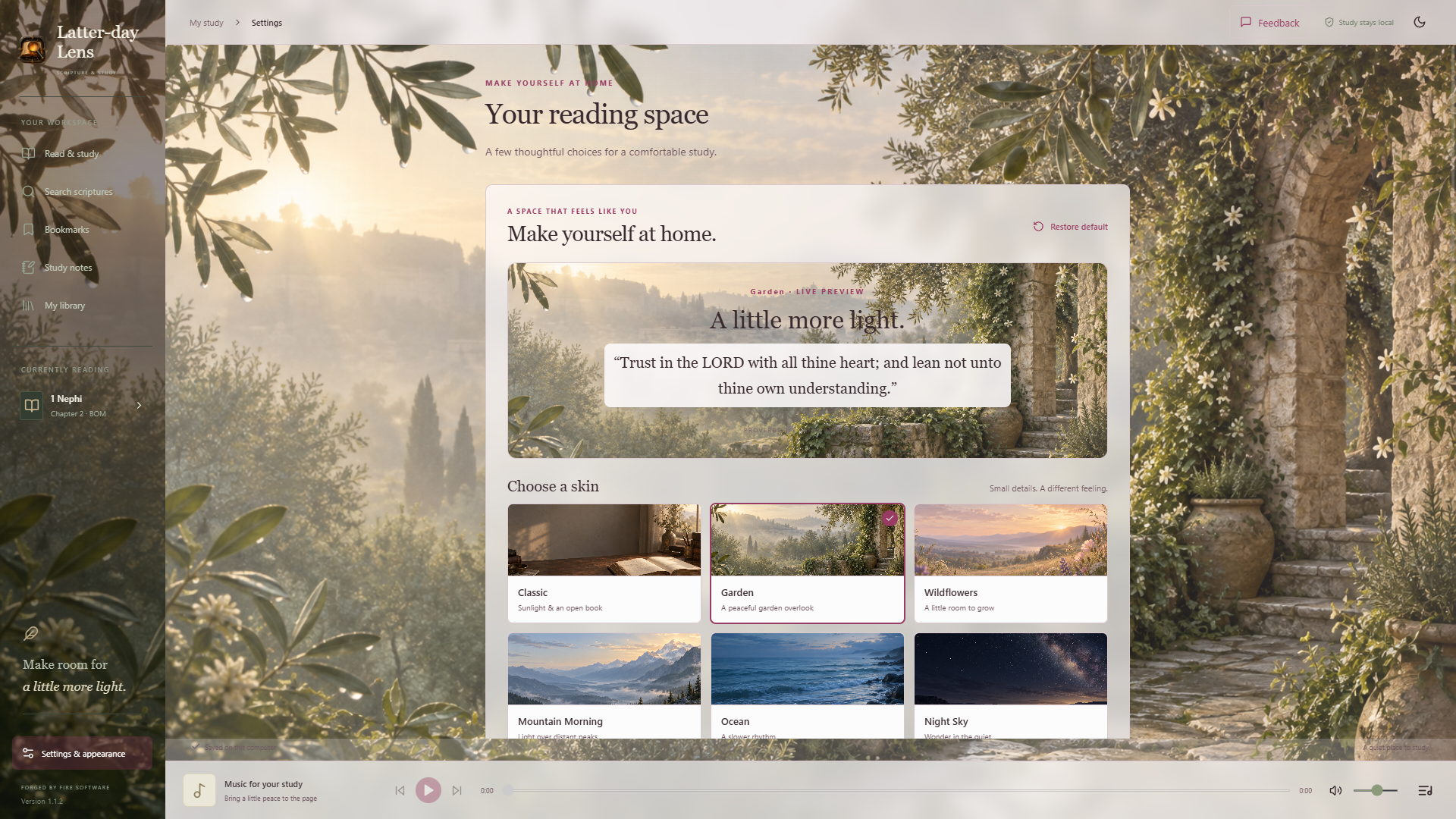
Latterday Lens dual-pane scripture reader Latterday Lens primary scripture tools Latterday Lens compare scripture tools

Download

Version: 0.8.0

Platform: Windows desktop app

File: Portable ZIP, 825.0 MB

Cost: Free

How to run: Download the ZIP, extract it, then open Latterday Lens.exe.

Privacy: Notes, bookmarks, settings, and indexes stay on your computer.

Windows Download Warning

Latterday Lens is new and not code-signed yet, so Microsoft Defender SmartScreen may warn that it is not commonly downloaded. Only continue if you started the download from cmforgedbyfire.com or the official cmforgedbyfire GitHub release.

  1. Open the browser downloads menu next to the downloaded file.
  2. Choose Keep.
  3. If Windows shows "Make sure you trust this file", open the small arrow beside Delete.
  4. Choose Keep anyway.
  5. Extract the ZIP and open Latterday Lens.exe.
Browser downloads menu showing the Keep option
Open the downloads menu and choose Keep.
Windows trust warning showing the Keep anyway option
If Windows asks again, choose Keep anyway only for official downloads linked from this site.

Notes

Offline use: Latterday Lens runs locally after download. Optional local AI features depend on what is installed on the user's PC.

Storage: User notes, bookmarks, and generated indexes are stored in the user's local app data folder.

Feedback: Use the support page for bugs, download issues, and feature requests.